
- livescribe sign in
- link to evernote®
- smartpen activation
- update / connect
- arrow icon
- arrow icon
- arrow icon
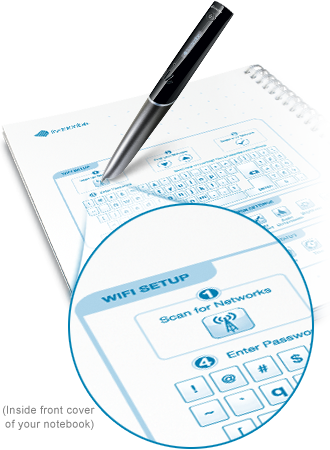
Connect to a WiFi network
Once you've registered your Livescribe wifi smartpen, your screen will continue to display the message "Go to..." until your smartpen connects to the Internet.
Simply follow the 4–step process on the inside front cover of your Starter Notebook to connect to WiFi and start syncing to Evernote.
Note: If your connection to the internet requires a login through a webpage, you will need to sync your notes using the Livescribe Helper app and your USB cable.
No WiFi connection?
Livescribe Helper is a convenient backup method to synchronize your Livescribe wifi smartpen’s notes and audio with your online Evernote® account and install any smartpen software updates. Simply connect your smartpen with the included USB cable to your Mac or Windows computer after installing Livescribe Helper.

